Plugin Wrangler user guide
Plugin Wrangler inventories every audio plugin on your Mac and helps you clear out what isn't earning its place. It flags nothing without a reason you can read, and it never deletes anything. This guide is organised by what you're trying to do, so start wherever your question is.
Before you start
Plugin Wrangler is an ordinary Mac app with one window. It reads your plugin folders, the DAWs you have installed, and — if you point it at them — your Logic projects. It doesn't need an account, it doesn't upload anything, and it doesn't run in the background.
Nothing is ever deleted. Uninstall moves files to the macOS Trash, where Put Back works until you empty it. Disable doesn't even do that — it renames a file so no DAW can find it, and renames it back when you change your mind.
It's worth opening your DAWs at least once before a serious clean-up, because what the app can claim depends on what it can see. A DAW that isn't installed can't be counted as a host, and a session folder you haven't added can't speak for a plugin.
Your first scan
Open the app and it scans immediately — every standard plugin location for every format, both the system folders and your own. A library of a couple of thousand files takes about half a second.
The sidebar is the whole argument in miniature. Under Cleanup there is one row for each reason a copy is flagged: No DAW loads it, Broken bundle, Older edition, In no added project, Waves won't load it and the rest, each with the space its copies take. Click a reason to see its plugins. A reason with nothing behind it on your Mac isn't listed.
There is no list of everything flagged, and no button that gathers it for you. The app states the evidence, one reason at a time, and whether anything goes is your call.
The Flagged card above the list adds up the space every flagged copy takes. It is the space those copies take, not space you get back: a copy can be flagged and still be one you want.
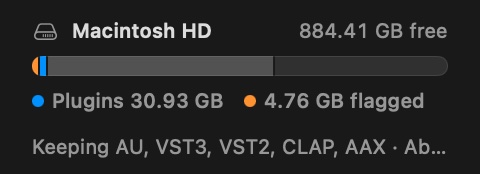
At the bottom of the sidebar there's a disk meter: how full the drive is, how much of it is plugins, and how much of that is in flagged copies.
What it flags, and why
Every finding names its evidence. That's the point of the app: it gives no verdict on what to remove. It tells you what it found, and you decide. Each reason below is a row under Cleanup in the sidebar when your Mac has a copy it applies to.
No DAW loads it
An AAX plugin needs Pro Tools. A CLAP needs a host that loads CLAP. This reason means none of the DAWs found on your Mac loads that copy's format, however good the plugin is. The app can only know the DAWs on its own list, so check that nothing else you use loads that format.
The other reasons
- Extra formats — a copy in a format you've chosen not to keep, where a kept format of the same plugin is already installed.
- Installed twice — the same plugin in the same format, in two different folders. Only one of them can load.
- Broken bundle — an empty executable, a missing one, or a Windows DLL wearing a .vst3 extension.
- 32-bit only — no 64-bit code in it at all. No current DAW can load it.
- Beta or demo — the name marks it as a beta, demo or trial build.
- Needs Rosetta — no Apple Silicon build, so it only loads when the DAW runs under Rosetta.
- Older edition — a newer edition of the same plugin, from the same maker, is installed too. Old sessions may still open with the older one.
- In no added project — none of the projects you added loads this copy. Projects you haven't added aren't checked.
- Unused WaveShells, No WaveShell for it and Waves won't load it — see Waves and its shells.
- UAD-2 not owned, UAD-2 license unknown and UADx not from UA Connect — see Universal Audio licences.
Some of these the app can read straight off the file. Others rest on something only you know: whether you added every project, whether you still open sessions made with the older edition. It lists every one the same way, with its reason and its size, and leaves the plugin alone until you act.
Extra copies of one plugin
Most installers put down every format they support. If you work in Logic, the VST3, VST2 and AAX copies are just sitting there — and for sample-heavy instruments that can be gigabytes per format.
Every format is kept until you turn one off. The switches are in the sidebar under Formats you keep, and in Settings; the (i) beside each one names the DAWs on your Mac that use it. Once you turn a format off, a copy in that format becomes an extra copy wherever a kept format of the same plugin is installed. Nothing is listed as extra until you do.
Those versions kept Audio Units only, and listed the AAX, VST2 and VST3 copies of a plugin under Safe to remove. If your DAW isn't Audio Unit only (Pro Tools, Cubase, Ableton Live and others) and you removed copies you need, they are still on your Mac: open the Trash, select them and choose File → Put Back, or open Disabled in the sidebar and choose Enable. The app keeps no list of what it uninstalled, so the Trash is where to look.
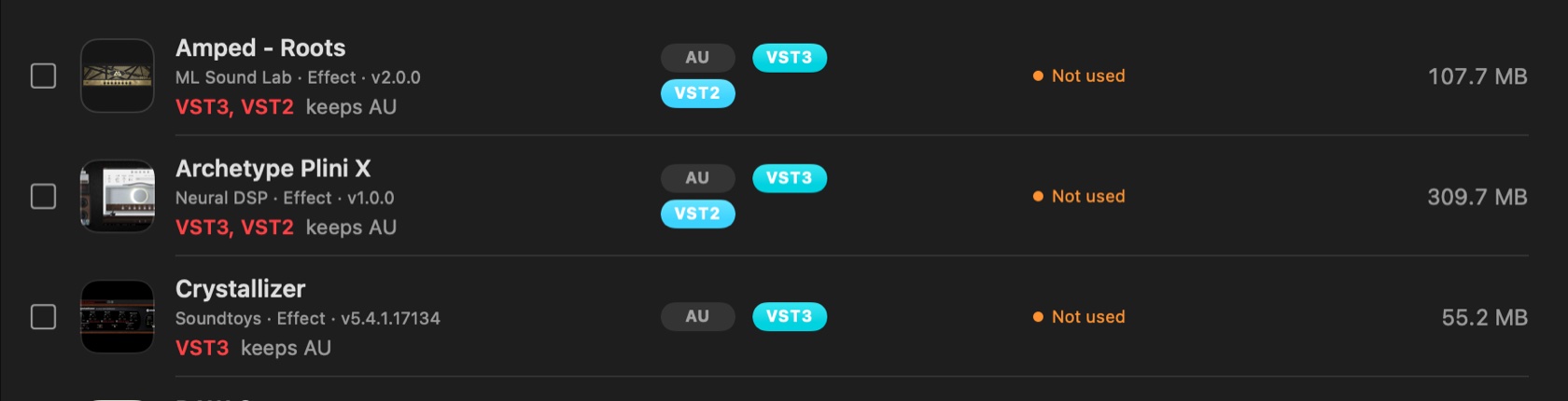
Findings attach to files, not to products. Removing an extra VST3 leaves the plugin's AU exactly where it is, and the app says so on every screen before you commit.
What your sessions use
Add a folder of Logic projects with the + on the sidebar's Projects line. The app reads each one and records the plugins it loads — including every alternative mix, because a plugin used in an alternative is still needed to open the project.
That gives every plugin in your library a status: In 4 projects, Not used, or a dash when the sessions genuinely can't speak for it.
The app never goes looking for your projects on its own. Until you add a folder, the In no added project finding stays silent — a guess there would be the most dangerous sentence in the app.
What a session needs
The same reading answers the question you have before a session opens: can this Mac open this project? Select a project and you get its full plugin list, split into what's installed and what isn't.
Logic stores a plugin's name in a twelve-byte field, so long names arrive cut short ("Archetype P…"). The app pairs those with the manufacturer code and remembers the full names of plugins it has seen, so a plugin you removed last month is still nameable today.
Disable instead of removing
When you're not sure, don't decide. Disable renames the file so no DAW can find it. Nothing moves, nothing is copied, and Enable is the same rename in reverse.

Disabled plugins live in their own view with a countdown. After the hold — thirty days by default, and yours to change — a plugin nobody turned back on, and that no Logic, Live or Pro Tools project in the folders you added has asked for, reads Hold is up. Uninstalling it is still your call.
Hosts cache their plugin list. After disabling or enabling anything, restart the DAW before you judge whether it worked.
What Uninstall takes
Uninstall moves files to the Trash. Before anything moves, a sheet lists every file by name and size — and only the files the current view would act on.
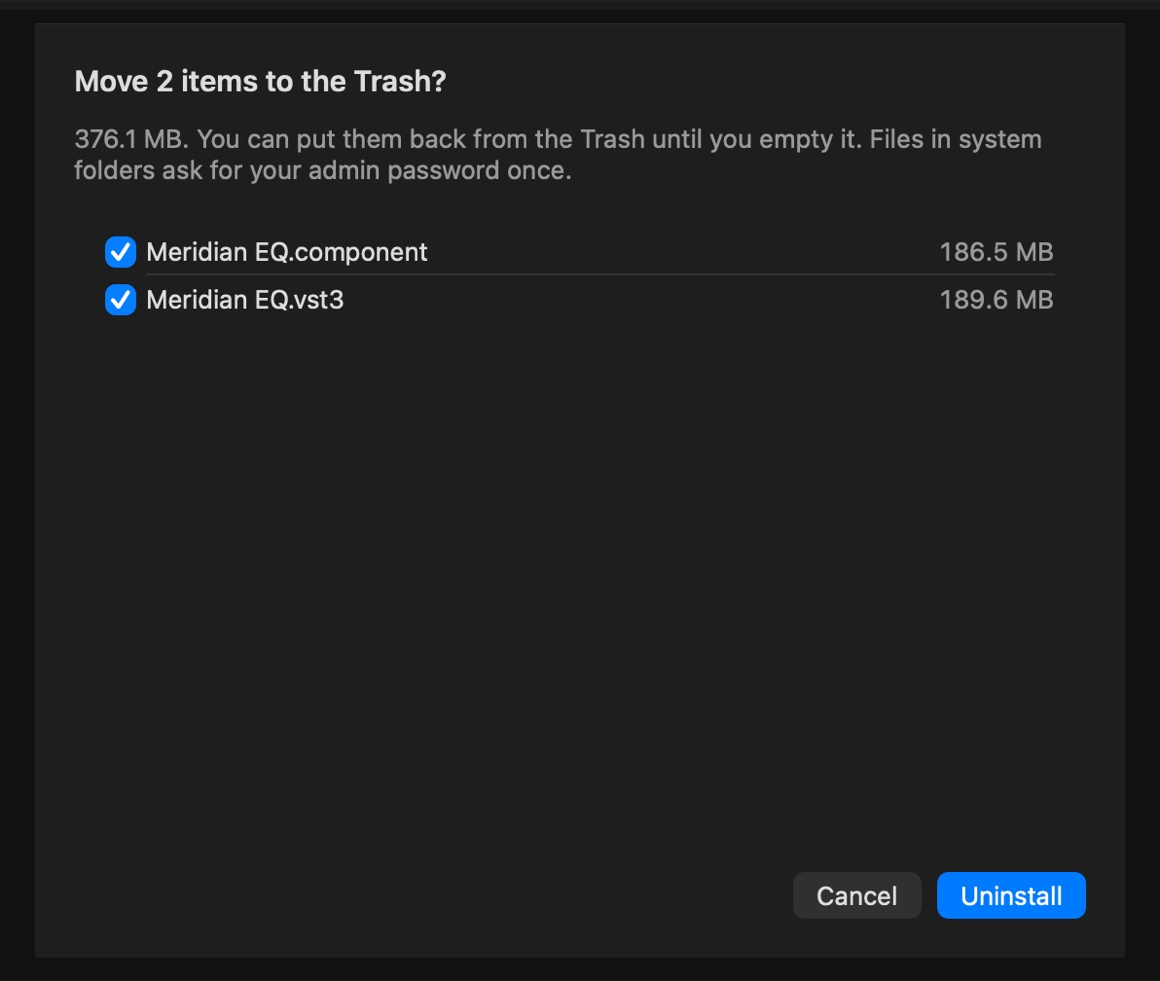
- Put Back works until you empty the Trash. That's macOS doing it, not the app pretending to.
- Plugins in system folders need an admin password once, which macOS asks for through Finder.
- Vendor installers can put things back. If a UAD update reinstalls demos you've already cleared out, the app notices and tells you rather than quietly re-flagging them.
Waves and its shells
Waves doesn't install plugins the way everyone else does. It installs a shell per version, and each shell loads only the plugins built for that version. An old shell isn't clutter — if anything still uses it, removing it breaks every one of those plugins.
So shells are never flagged by age. Only a shell with nothing installed behind it is flagged, as Unused WaveShells. Two reasons cover the plugins themselves: No WaveShell for it, when no shell of the plugin's version is installed in any format, and Waves won't load it, when Waves isn't offering that copy to Logic or other Audio Unit hosts. That one is usually an old version left behind by an update, and the row names the newer version that is installed and loads. VST3 and AAX aren't checked, so the copy may still load in a DAW that uses those.
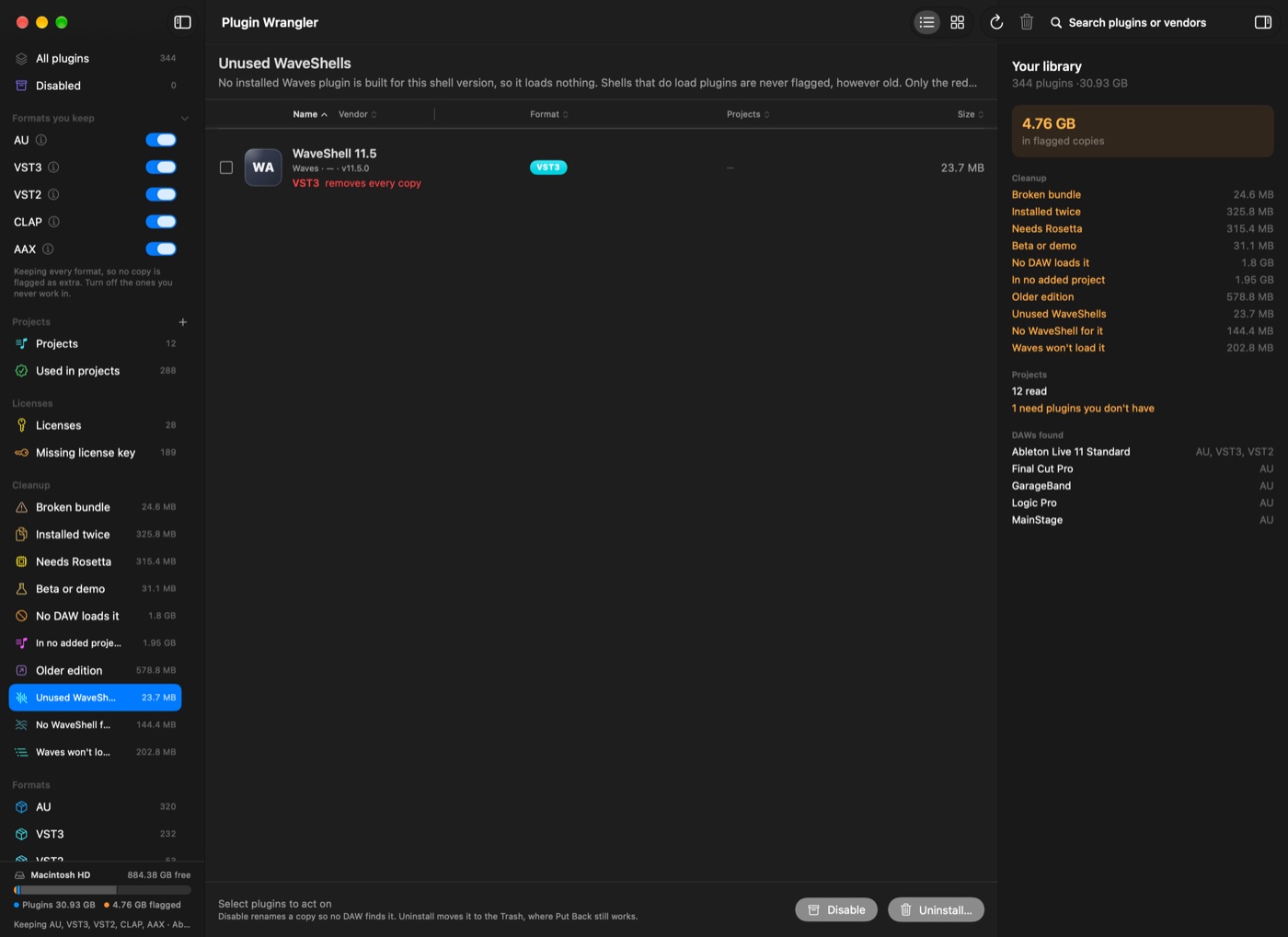
Use Waves Central for the plugins themselves. Waves keeps its own record of what's installed, and taking files out from under it leaves that record wrong.
Universal Audio licences
UAD-2 installers put down every plugin in the catalogue, whether you own it or not. The ones you don't own are demos, and on a big system that's hundreds of files.
Plugin Wrangler asks the UA Mixer Engine — the local service the UAD software already runs — what it's authorised to run. It only ever asks; it sends no commands and never touches a licence file.
- UAD-2 plugins (the ones that run on Apollo or card DSP) are answered by the mixer directly.
- UADx native plugins aren't recorded on disk at all — ownership lives in your UA account. The app shows what UA Connect manages locally as a prompt to check, never as proof.
Broken, old and Intel-only
Three findings come straight out of the files themselves.
There's also Older edition, for when an older edition sits beside its replacement — Kontakt 7 next to Kontakt 8. It's a prompt, not a verdict: old sessions open with the version they were saved with.
Finding things
Search by plugin or vendor from the toolbar. Sort by name, vendor, format, use or size by clicking a column heading. And switch between the list and a card view — the list for comparing and acting in bulk, cards for scanning by eye.
You can also tag plugins (Licensed, Free, Subscription, Demo) and leave yourself notes. Tagging something Licensed settles a licence-unknown finding — though a beta stays a beta, because a licence doesn't make it stable.
Your license keys
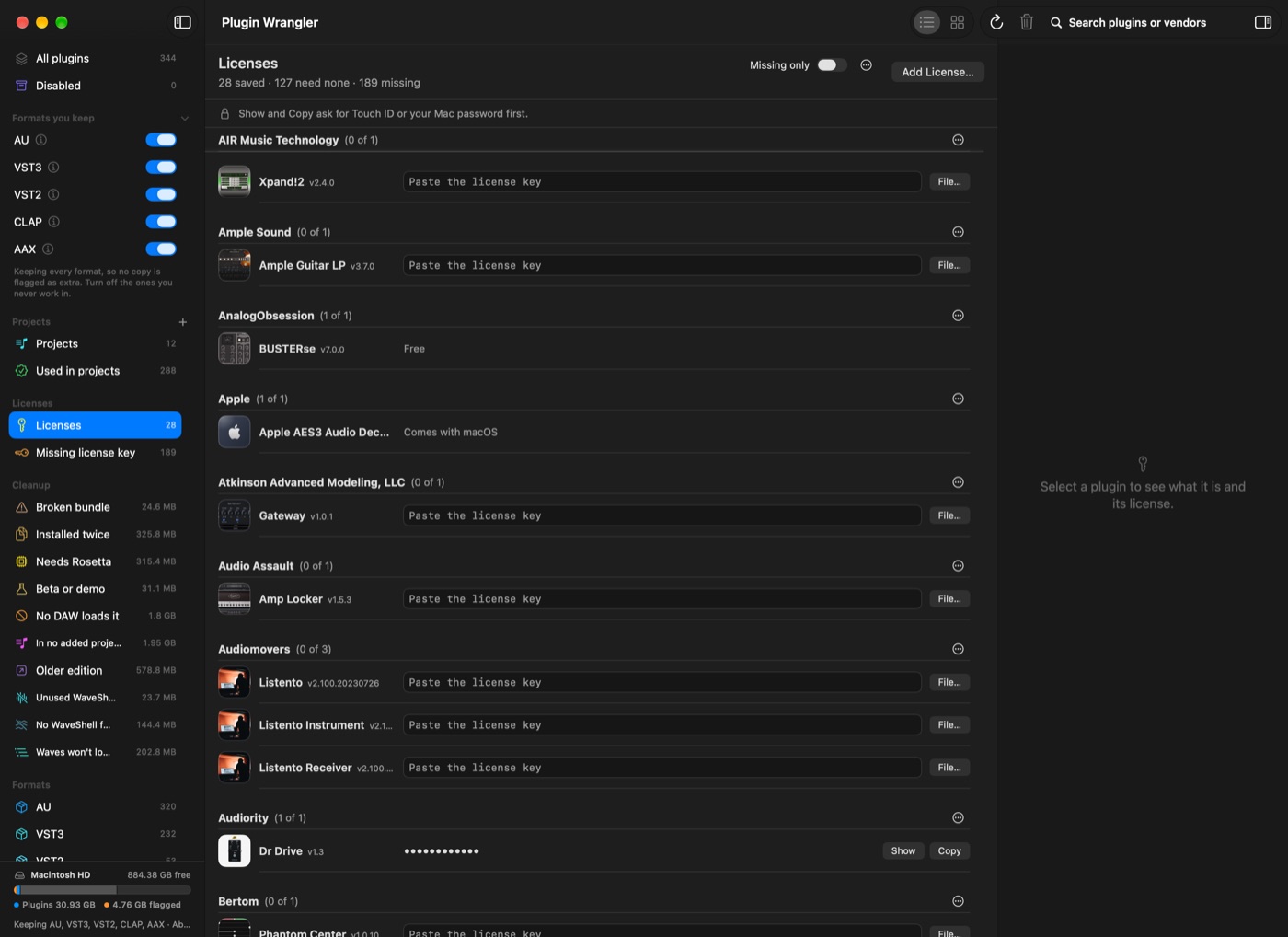
Licenses, in the sidebar, lists every plugin on your Mac by maker. Each row that has no license key saved has a field for one: the license key or serial number the maker sent you when you bought the plugin. Apple's plugins come with macOS and need no key.
Adding keys, three ways
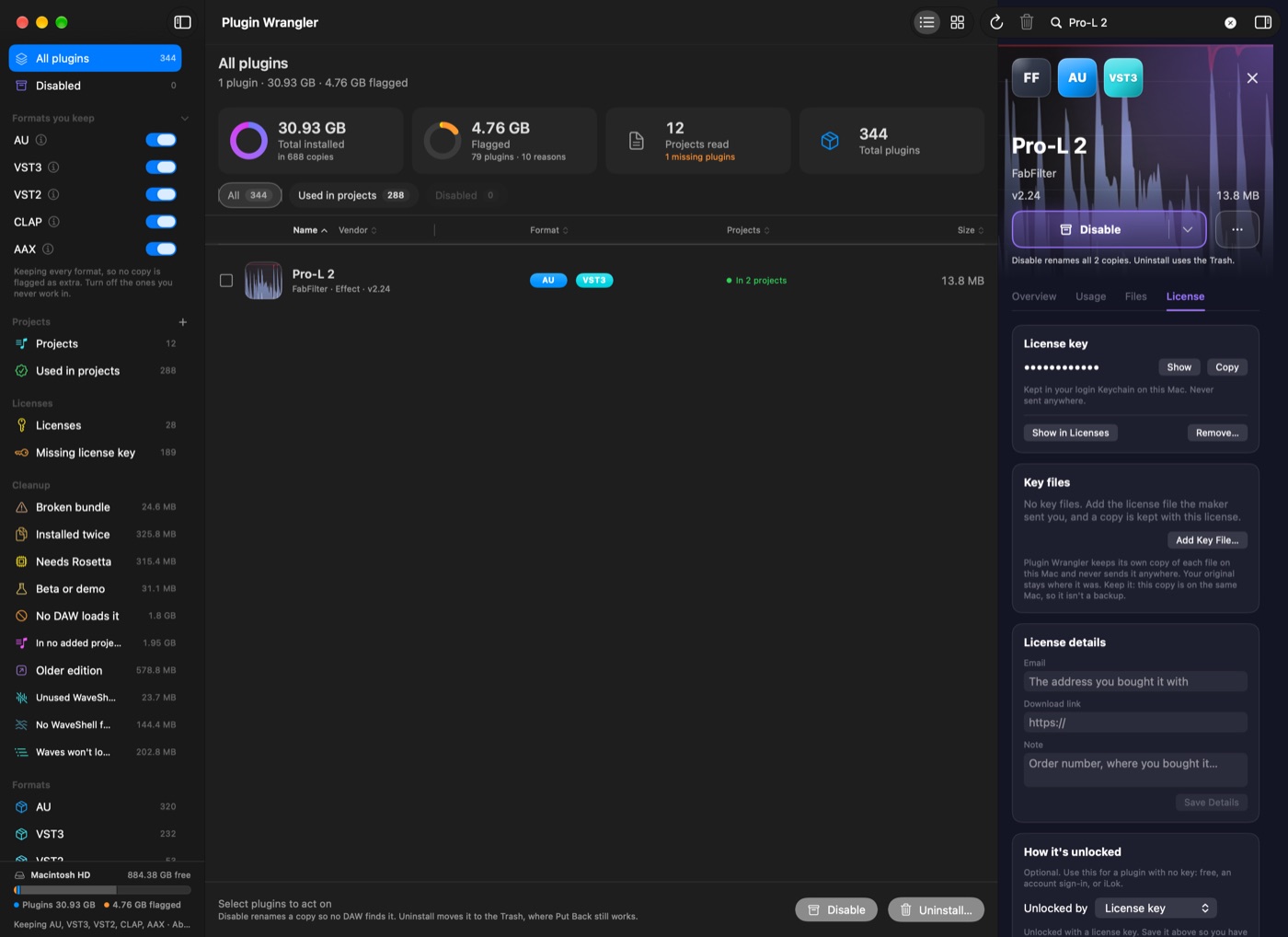
- One at a time. Paste the license key into a plugin's row and press Return or Tab: it is saved and you are on the next plugin. Only Return and Tab save. A key you typed and left reads Press Return to save, and it is cleared if you leave Licenses first. You can also right-click any plugin and choose Add License Key…, or use a plugin's License tab.
- One key for a whole maker. A maker's menu sets one license key for all of that maker's plugins at once, or marks them as needing none: free, an account sign-in, or iLok. Missing only hides the plugins that are done.
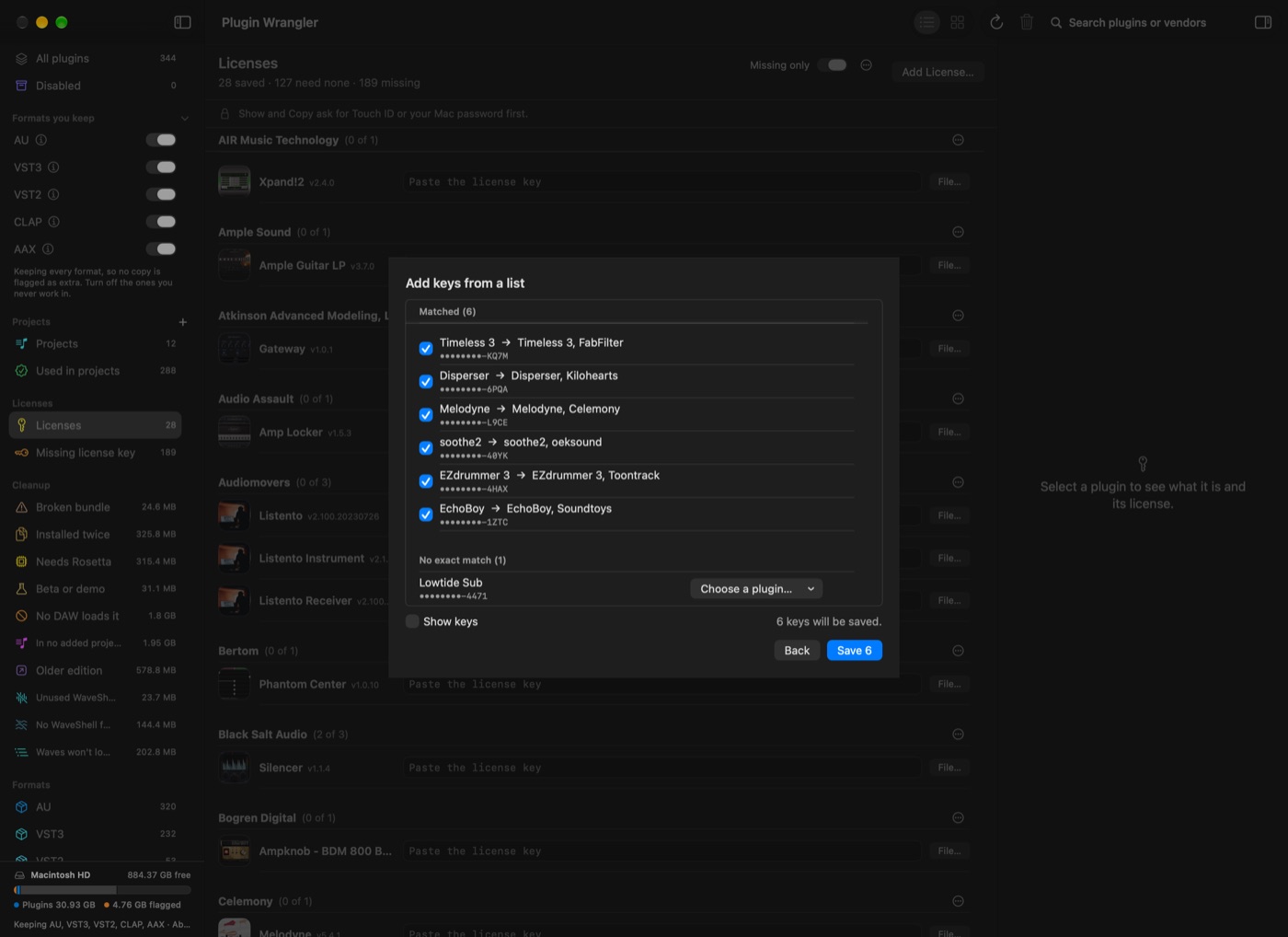
- From a list. Add Keys from a List… takes rows pasted from a spreadsheet, or a CSV from a password manager. The app matches each row to a plugin and shows you every match before anything is saved. A row is matched only when its name is exactly one plugin's, and never when the row names a different maker; anything else is yours to choose. It never replaces a key you already saved. A list can hold up to 5,000 rows.
Key files
Some makers send a license file instead of a key. Add Key File… keeps a copy of it with that plugin's license, and Save a Copy… hands it back, unchanged, whenever you need it. Your original is never moved. A key file may be tied to one Mac by its maker, so a copy of it is not a promise that it works on another.
Export, and import on another Mac
Export Licenses… writes every saved license (license keys, key files and notes) to one file that needs your passphrase to open. Import Licenses… reads that file on another Mac. Nothing is sent anywhere: the file goes where you put it.
Importing saves the keys on the other Mac. It does not license the plugins there. There is no way to recover a lost passphrase, so keep it somewhere you will find it, apart from the file. Anyone with the file and the passphrase can read every key in it.
Where the keys are kept
License keys are kept in your login Keychain on this Mac, each named for its plugin: in Keychain Access, search for Plugin Wrangler. Because they are in the Mac's own Keychain and not in a file only Plugin Wrangler can read, they are never locked inside the app: Keychain Access shows them whether or not Plugin Wrangler is installed. In the app, Show and Copy ask for Touch ID or your Mac password first. Removing a license deletes its key from your Keychain; there is no Trash for keys, and the plugin's files aren't touched.
Key files, and the email, download link and note you add to a license, are kept in Plugin Wrangler's own folder on this Mac, not in the Keychain. Export Licenses… puts those in one file with the keys.
What needs a Plugin Wrangler license
Saving a new license key or key file needs a Plugin Wrangler license, and so does importing, because importing adds licenses. Everything you've already saved stays yours to see, copy, save out, remove and export, with or without one.
Missing license key lists the plugins with nothing saved that you haven't marked as needing no key.
Known limits
Things it doesn't do, so you find out here rather than mid-clean-up.
- Sessions mean Logic. Ableton Live is next. Until then, a plugin in a format your Logic sessions can't use is reported as unknown rather than unused.
- It doesn't install or update anything. For a missing plugin it points at the vendor's own installer; it never downloads on your behalf.
- It can't price your library or tell you what a plugin is worth. It reads your disk, not a catalogue.
- iLok is read-only and by hand. The app never reads PACE's files. A licence you export yourself can be imported; nothing else.
- UADx ownership can't be confirmed on disk. UA keeps it in your account, so the app can only prompt you to check.
Troubleshooting
A plugin I disabled still shows up in my DAW
Restart the DAW. Hosts cache their plugin list at launch, and Logic in particular keeps its own record until it rescans.
Everything says "licence unknown" under Universal Audio
The UA Mixer Engine only runs while UAD Console does. Open Console, then rescan.
My plugins all say "Not used"
No sessions have been added yet, or the ones added don't cover the work in question. Add the folder your projects actually live in, with the + on the Projects line.
I removed something I needed
Open the Trash, right-click it, and choose Put Back. That's exactly why removal goes to the Trash and nowhere else. Then restart your DAW.
A vendor's installer put the plugins back
Some installers reinstall their whole catalogue on update — UAD is the usual culprit. The app notices when plugins you've already cleared out reappear and offers to deal with them again.