
FCP Relay user guide
FCP Relay imports your structure into Final Cut Pro and keeps it exactly as it is. Relationships, organization, and naming stay intact. Media stays where it lives. This guide is organized by what you're trying to do, so start at whichever section matches.
Before you start
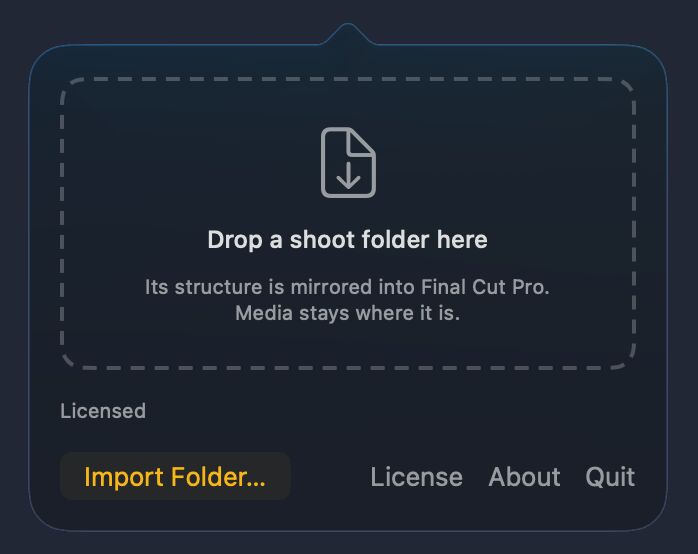
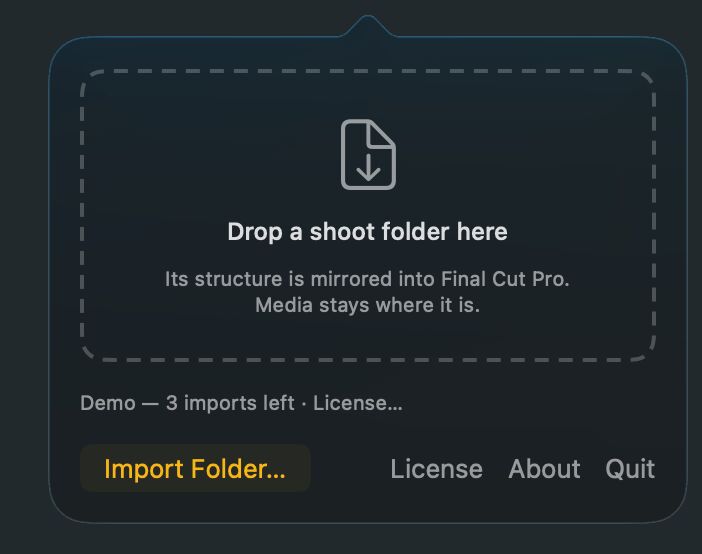
FCP Relay lives in the menu bar. There's no Dock icon and no main window — you click the stack in the menu bar and a small panel drops down. That panel is the whole app.
On first launch FCP Relay offers to move itself to your Applications folder. Say yes. The Finder right-click shortcut only appears for apps that live in Applications, so declining quietly costs you that feature.
You also need Final Cut Pro installed. FCP Relay reads Final Cut's own format definition to check its work before handing anything over, so it needs the app present — not just a licence for it.
FCP Relay never copies, moves, renames or converts anything. It writes a single .fcpxml file next to the folder you dropped, and that file points Final Cut at your media where it already lives. If you move the folder afterwards, Final Cut will report missing media — so put the shoot where it belongs before you import.
Your first import
The whole flow is four screens, and you can accept the defaults on all of them.
- Click the FCP Relay icon in the menu bar and drop your shoot folder onto the panel. Drop the top folder — the one containing everything — not an individual camera card.
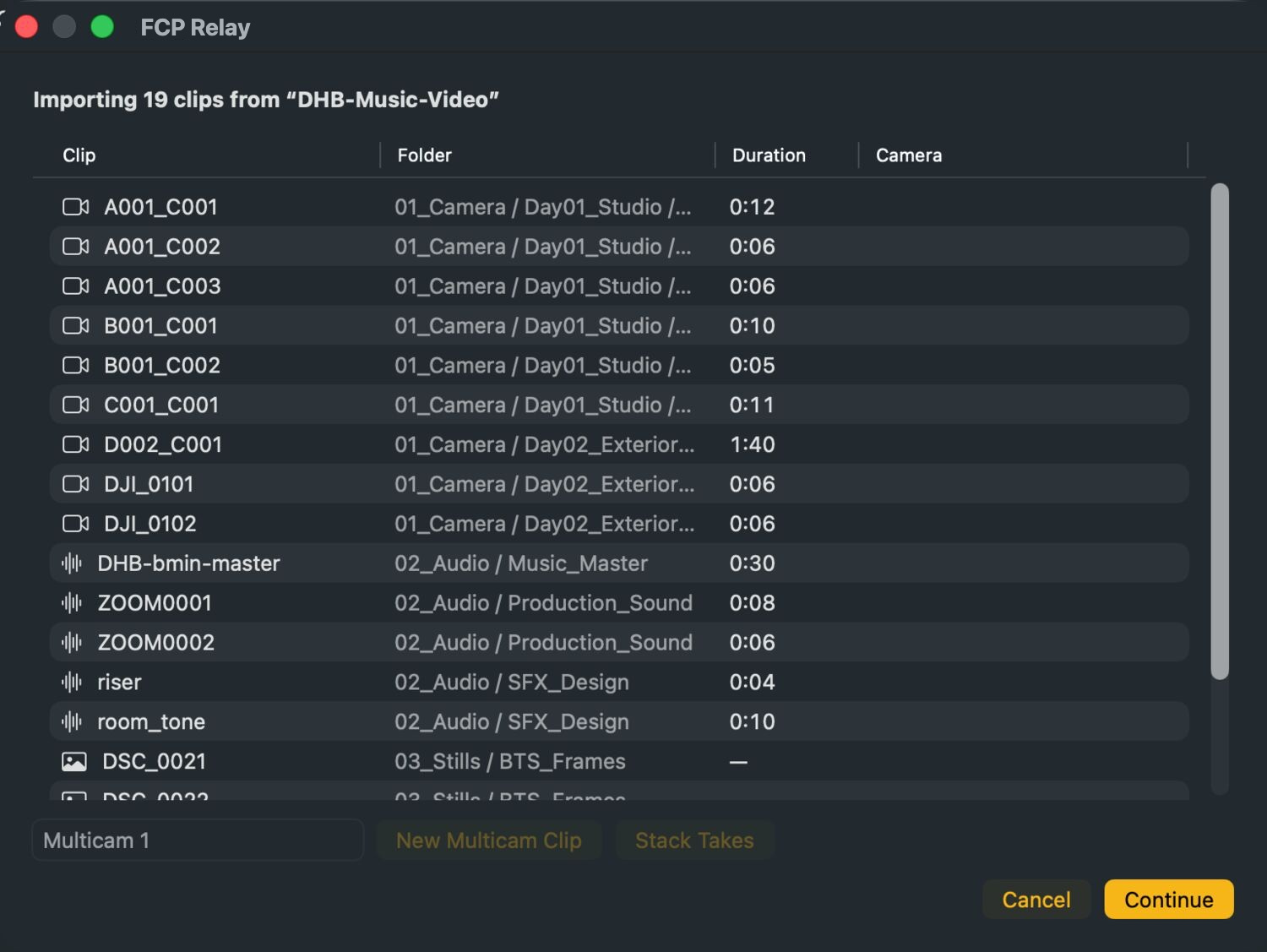
- FCP Relay scans it and shows you every clip it found, with the folder each one came from. This is your chance to see what's about to happen. If you don't want to group anything, go straight on.
- Name the project and confirm the settings. Automatic reads the settings from your footage and is right most of the time.
- FCP Relay writes the file and opens Final Cut Pro. Done.
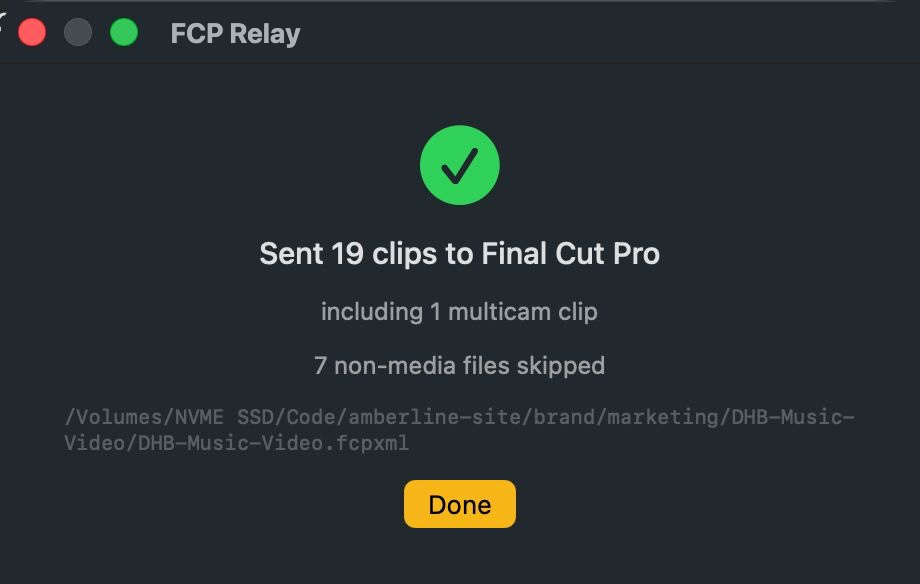
When it finishes you get a summary: how many clips went across, how many multicam clips were built, and how many files were skipped. The path to the generated file is there too, if you ever want to keep or re-open it.
What arrives in Final Cut
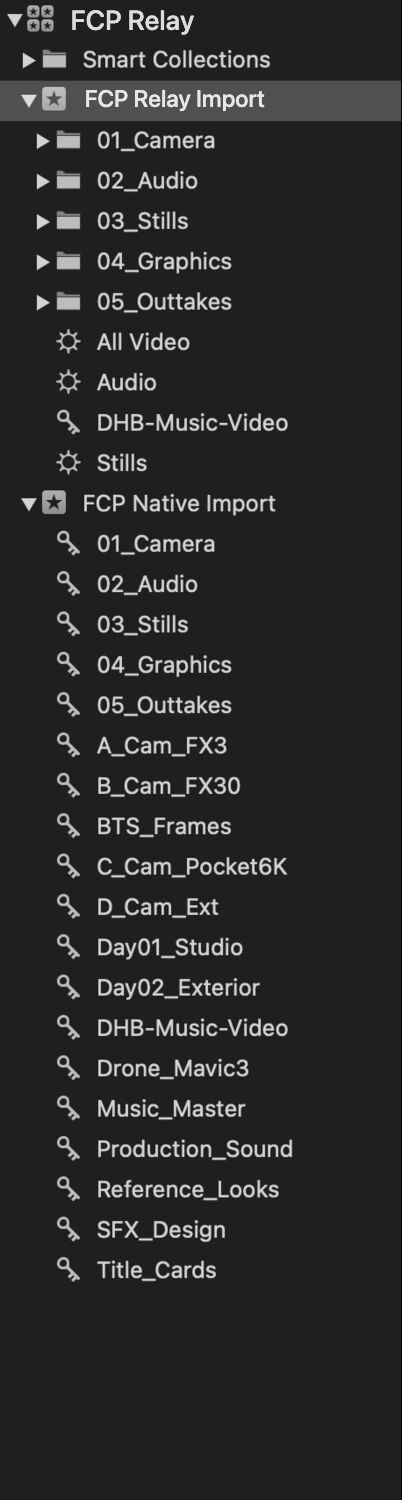
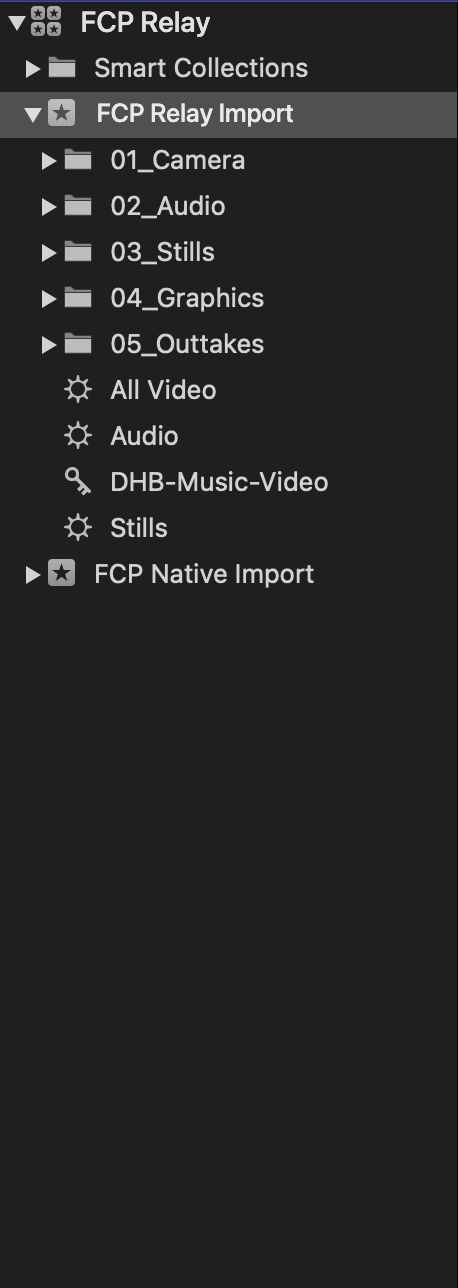
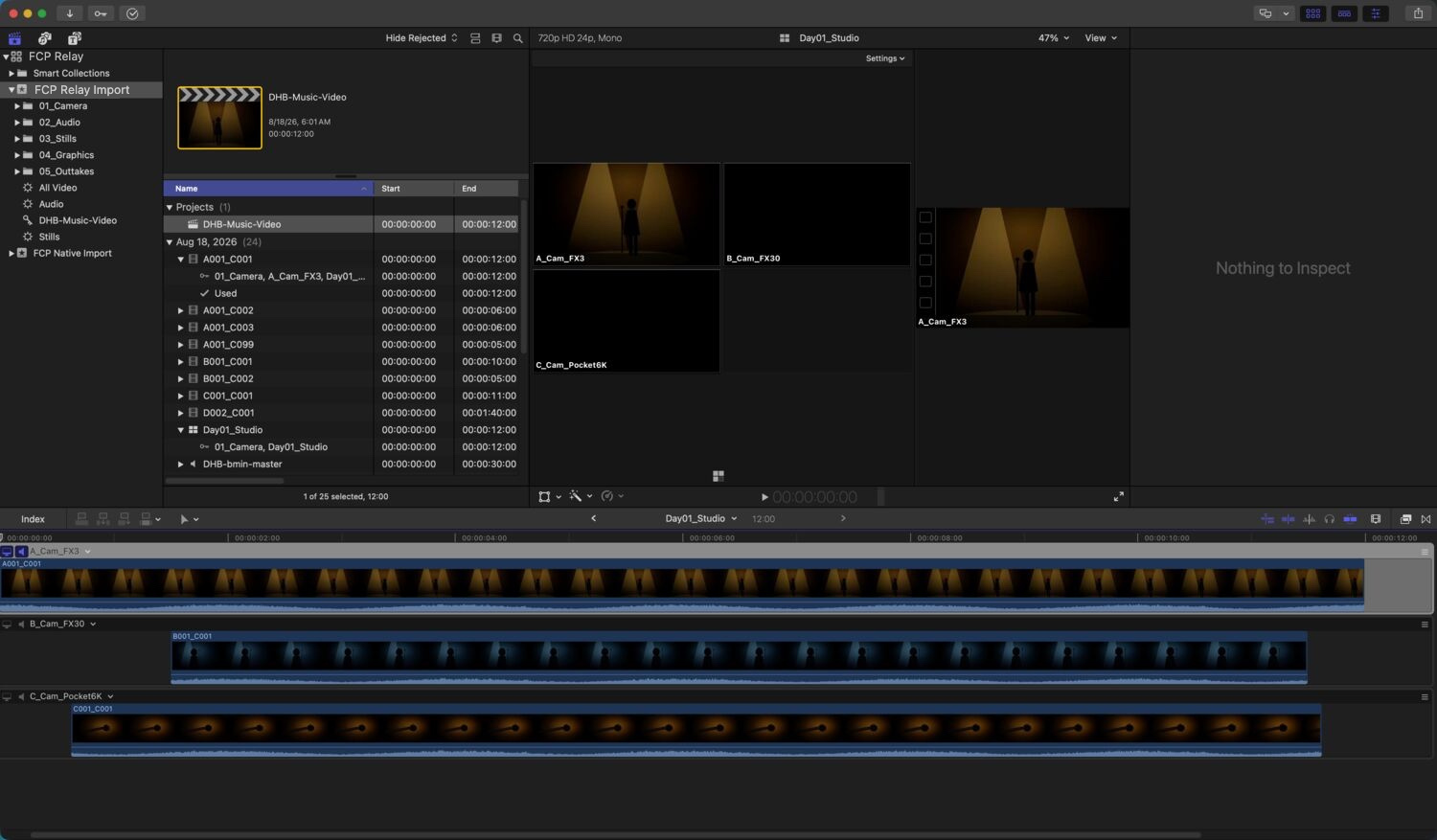
Your folders come across as nested collections, in the same order and at the same depth you built them. That's the point of the app, and it's easiest to see against Final Cut's own import of the same shoot.
Three other things are set up for you at the same time.
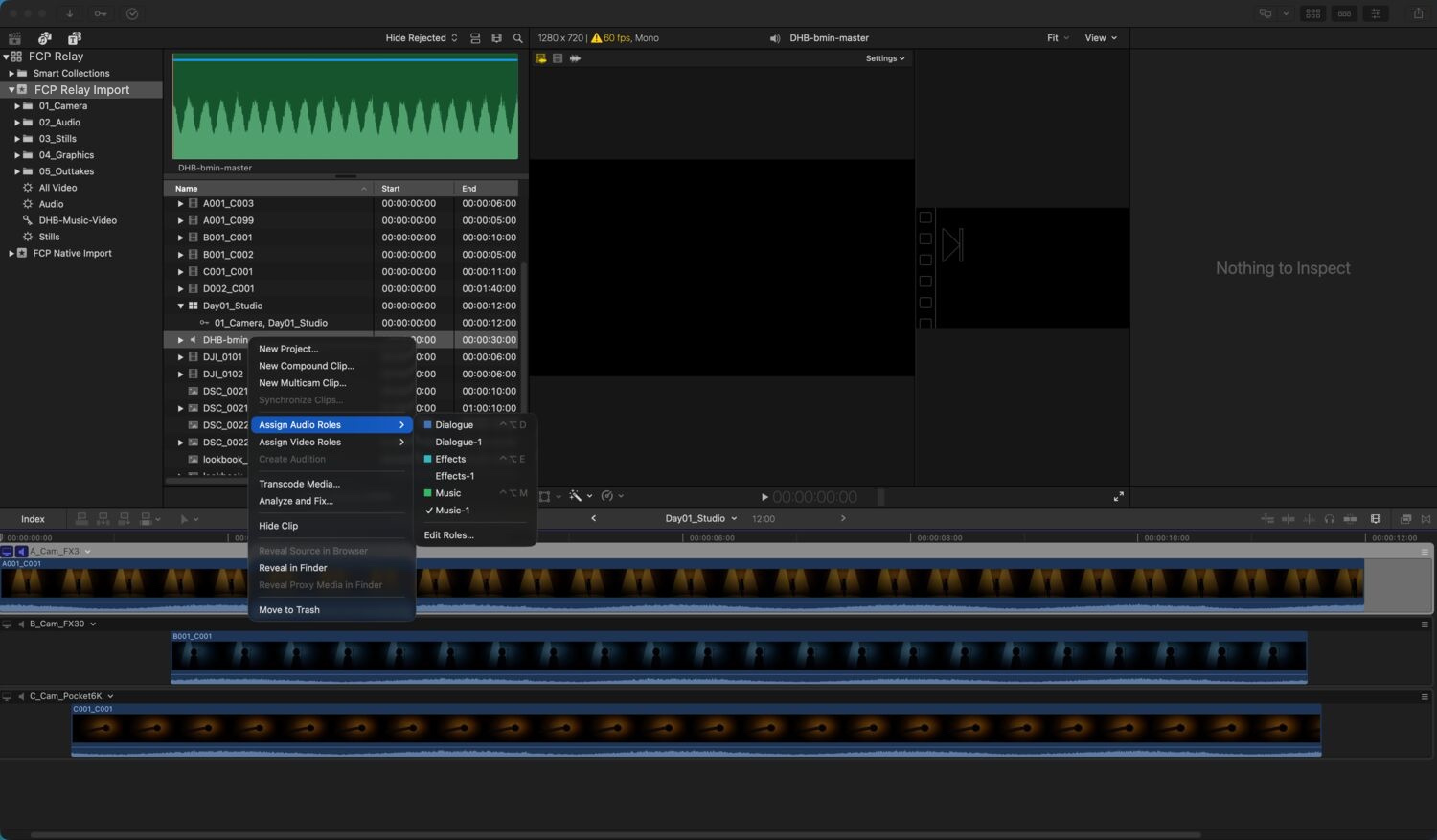
Audio roles, from your folder names
FCP Relay reads what you called the folder and assigns Final Cut's audio roles to match. A folder with Music in the name gets the music role, one with SFX gets effects, and anything else is treated as dialogue. You can change any of it in Final Cut afterwards.
Shoot metadata
Capture date and camera make and model are written onto each clip where the file carries them, so you can sort and filter on real information rather than filenames.
Smart collections
FCP Relay adds All Video, Audio and Stills views to the event, so you can pull one kind of thing out of a large shoot without hunting.
Multicam clips
If two or more cameras were rolling on the same thing, FCP Relay can line them up by their audio during the import and hand Final Cut a finished multicam clip. You don't sync anything yourself, and you don't do it as a second pass after importing.
- In the review step, select the clips that rolled together. Any number of angles works, not just two.
- Give the group a name — the room, the song, the setup. This becomes the multicam clip's name in Final Cut.
- Click New Multicam Clip. FCP Relay analyses the audio and lines the angles up.
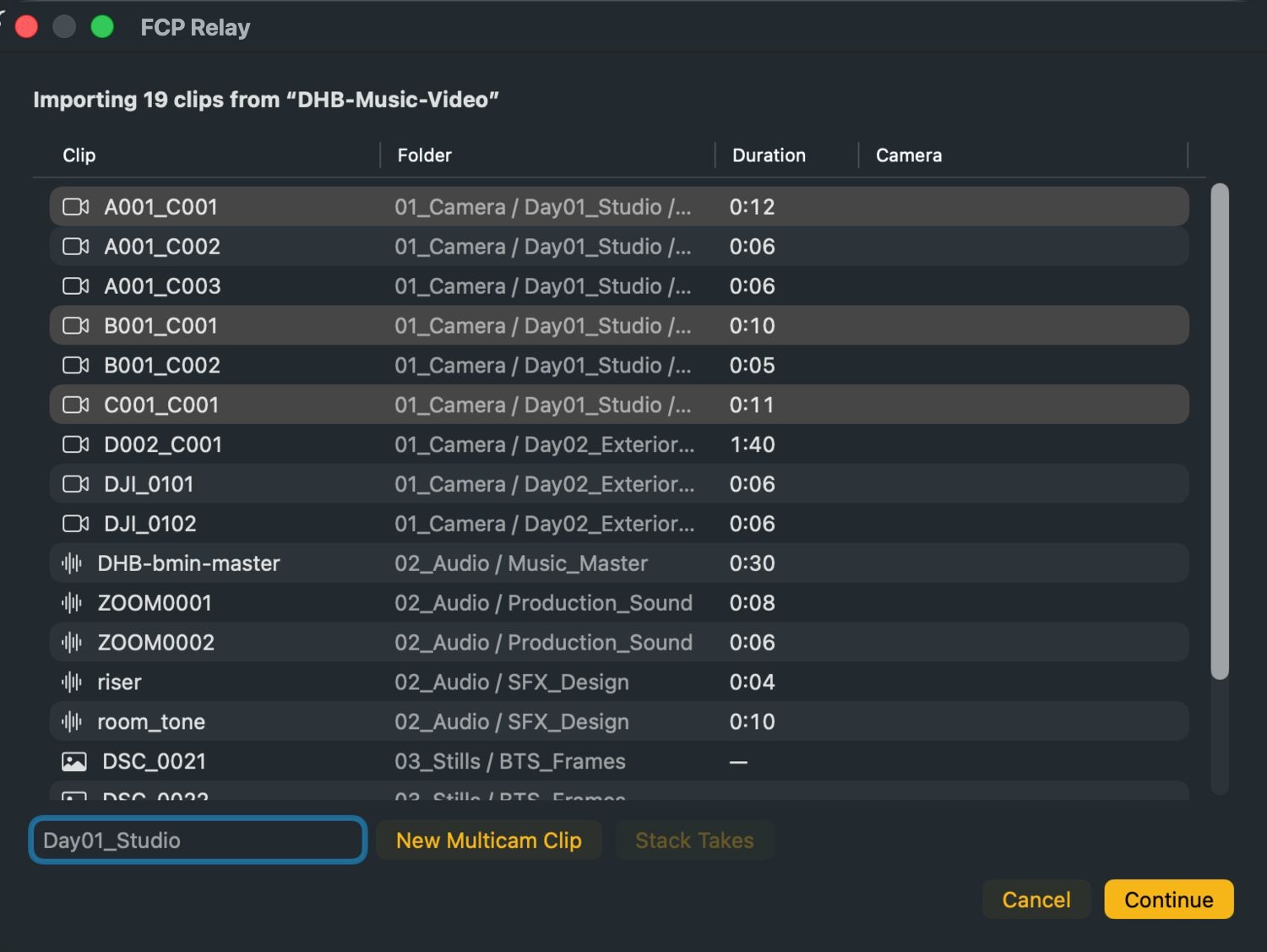
Grouped clips are marked with a badge so you can see at a glance what's in which group. They also stay in the event under their own folders — the multicam clip is an extra item, not a replacement, so your hierarchy is never disturbed by grouping.
When FCP Relay refuses to guess
Audio alone can't prove two cameras were rolling at the same moment. Identical playback through the same PA can correlate perfectly across takes recorded an hour apart. So FCP Relay also checks the camera clocks, and if they say the clips could not have been simultaneous, it stops and tells you rather than producing a confident, wrong answer.
If you know better than the clocks — a camera with the wrong date, footage from a recorder that doesn't set one — use Align Anyway to override. It's deliberately an explicit choice, not a default.
Groups it isn't confident about are flagged for you to check in Final Cut. Groups it can't match at all are reported as unmatched. Neither is silently guessed.
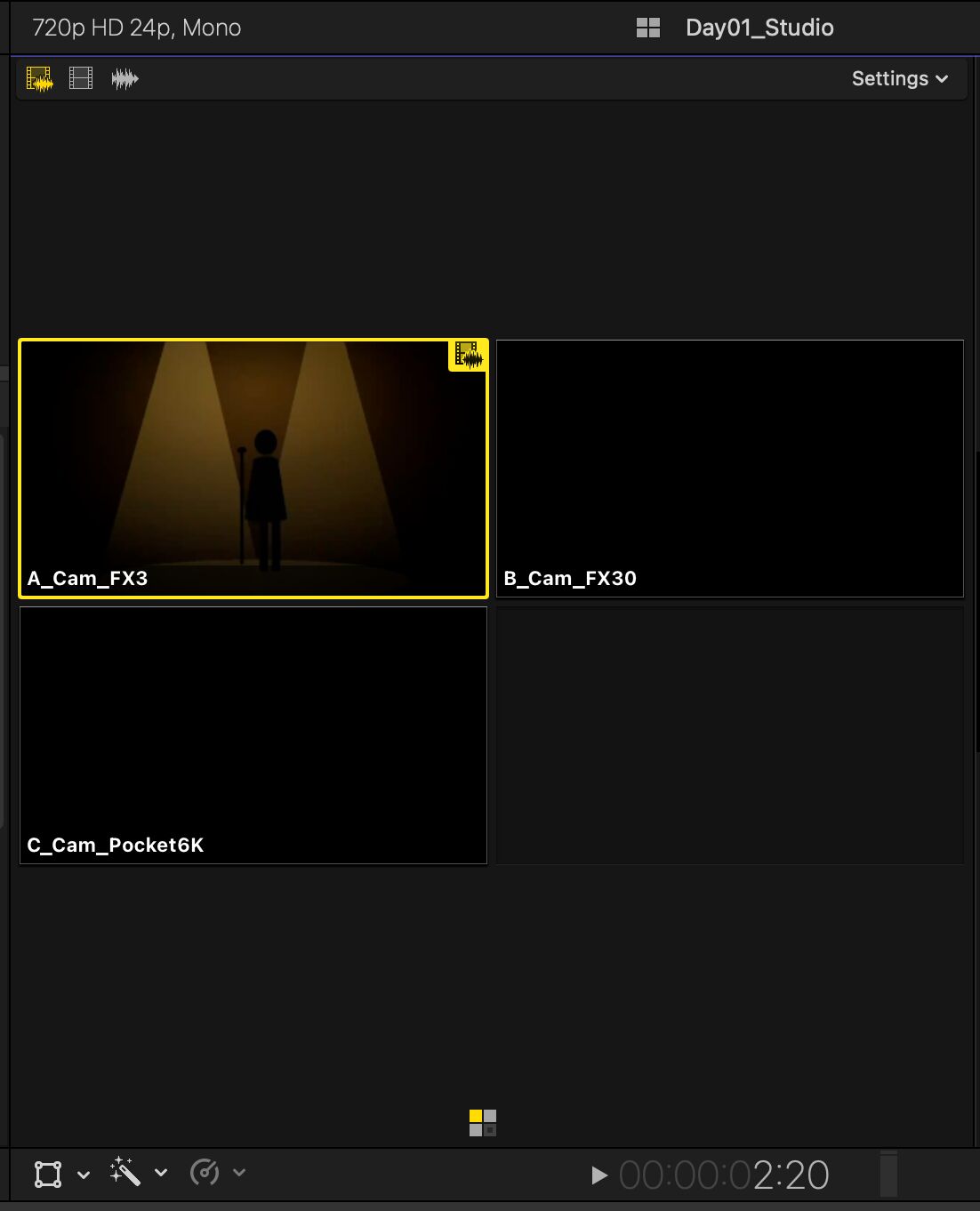
The multicam clip is also loaded into the timeline of the project FCP Relay creates, so there's nothing to drag in before you start working.
Stacking takes
The multicam feature above assumes every camera rolled once, together. Music video shoots don't work that way: one long camera file often holds several performances against the same playback, and what you want is each performance stacked against the song.
That's what Stack Takes does.
- Select your reference track — the song master, the bounce, the field recorder file — along with the camera files that were shot to it.
- Click Stack Takes.
- FCP Relay scans the camera files for every stretch that matches the reference, and turns each one into its own angle, trimmed to where the performance actually starts.
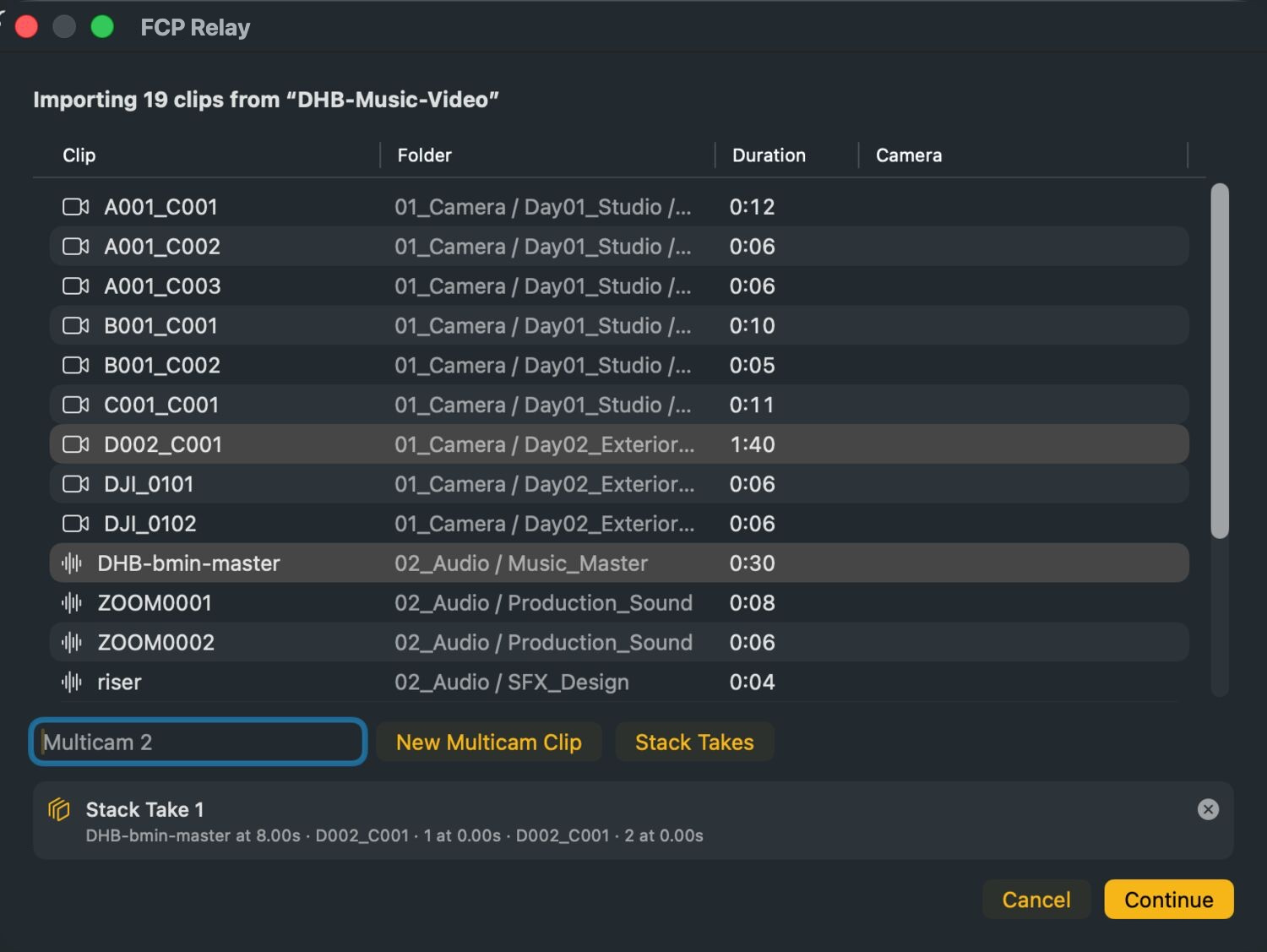
Several takes from the same file are numbered, so C0015 · 2 is the second performance in that clip. Anything with no matching stretch is reported as unmatched rather than dropped in at a guess.
Take detection works by finding the reference audio inside the camera's own recording. If the shoot was monitored on in-ears and the camera mics never heard the playback, there is nothing to match and FCP Relay will say so. A clap, a bit of speaker bleed, or timecode is what makes it possible.
Project settings
Before writing anything, FCP Relay asks what to call the project and which event to put it in. It also tells you how many clips it's about to import and how many folders they're spread across — a useful sanity check that you dropped the folder you meant to.
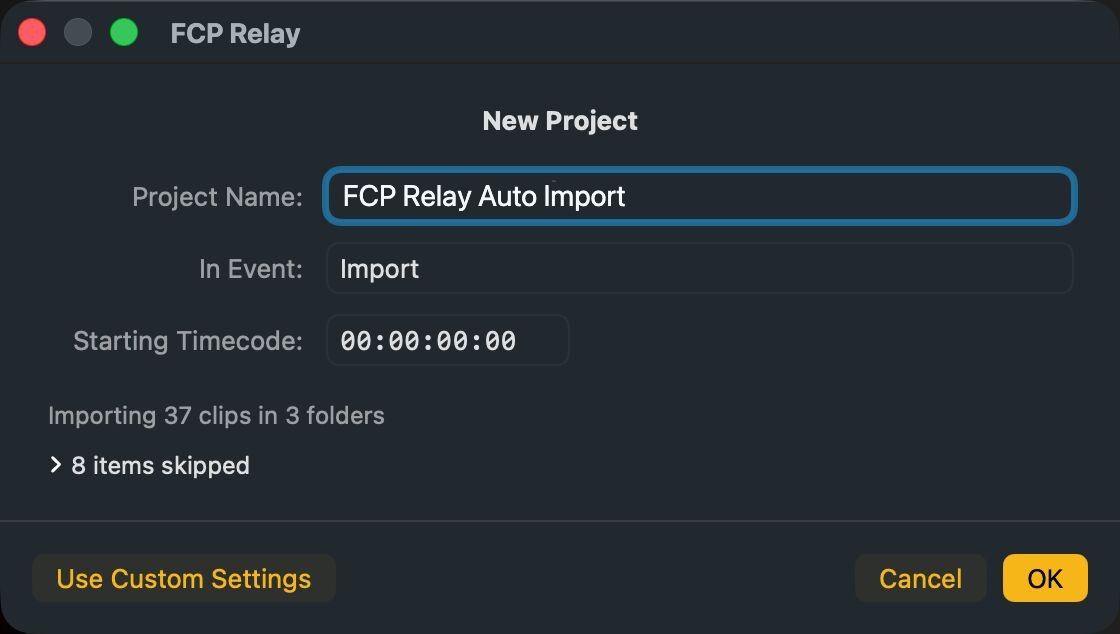
Automatic is right for most shoots. Switch to Use Custom Settings when you need to override — a delivery spec that differs from your source footage, a frame rate you're conforming to, a specific colour space.
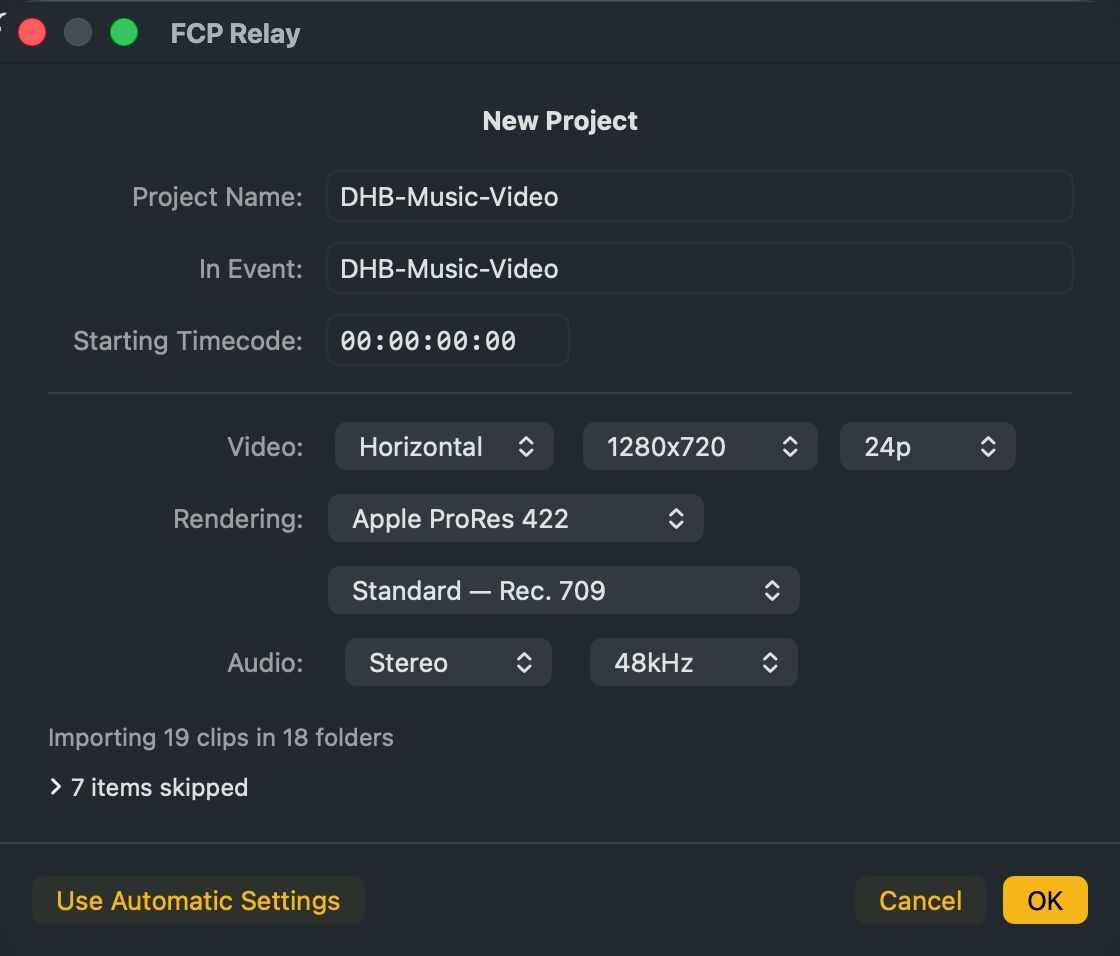
| Setting | What it controls |
|---|---|
| Project Name | The name of the project FCP Relay creates in Final Cut. |
| In Event | The event your clips and folders land in. |
| Starting Timecode | Where the project's timeline begins. |
| Video | Orientation, resolution and frame rate. |
| Rendering | Codec and colour space for renders. |
| Audio | Channel layout and sample rate. |
Importing from Finder
You don't have to open the panel at all. Right-click any folder in Finder, go to Services, and choose Import to Final Cut Pro. FCP Relay picks it up from there exactly as if you'd dropped it.
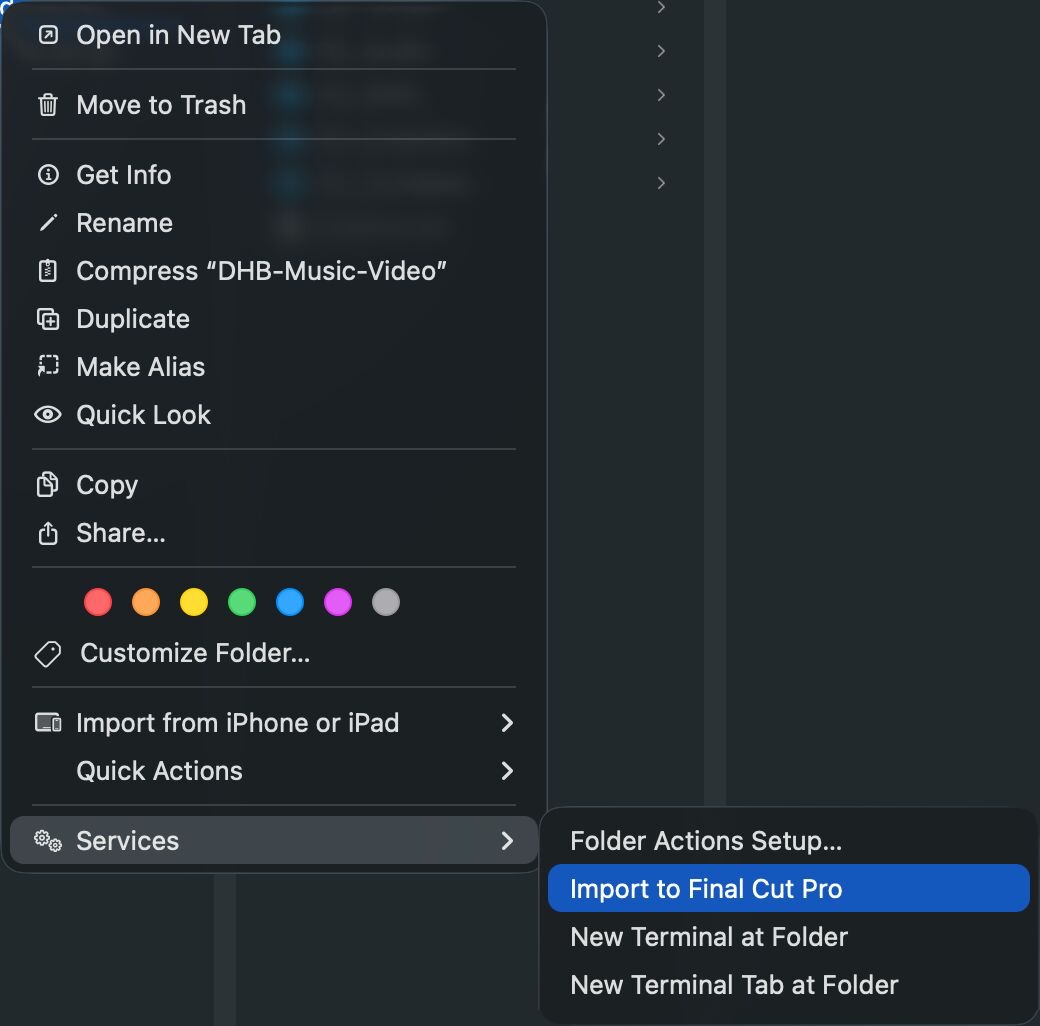
The shortcut only registers for apps in your Applications folder. Move FCP Relay there, launch it once, and the entry appears. macOS sometimes takes a moment to notice — if it still hasn't shown up, log out and back in.
What gets skipped
Shoot folders accumulate things that have no business in a Final Cut library. FCP Relay leaves them out and tells you how many it left, so the count is information rather than a warning.
- Hidden and system files — .DS_Store, resource forks, anything beginning with a dot.
- Non-media files — shot lists, notes, spreadsheets, PDFs.
- Project bundles — Logic, Ableton, Pro Tools and Final Cut project folders are skipped whole, as one line, rather than being torn open and imported piece by piece.
Still images are imported by default. Title cards, lookbooks and behind-the-scenes frames are real shoot assets, so they come across with everything else.
To see exactly what was left out, open the skipped list in the settings sheet before you confirm.
Demo and licensing
The demo
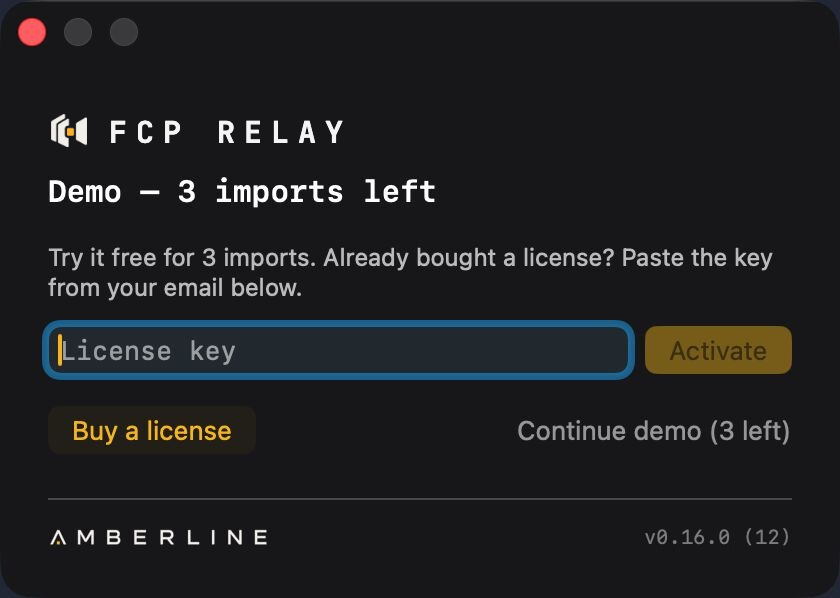
FCP Relay is free for three imports. Not three days — three imports, so a trial you start between jobs is still there when the next one lands. Only imports that actually complete are counted; a folder that failed to scan or a settings sheet you cancelled costs you nothing.
Activating
A licence is $4.99, once. Buy it and a key arrives by email. Open License from the panel, paste the key, and click Activate. That's the last time you'll think about it.
Moving to a new Mac
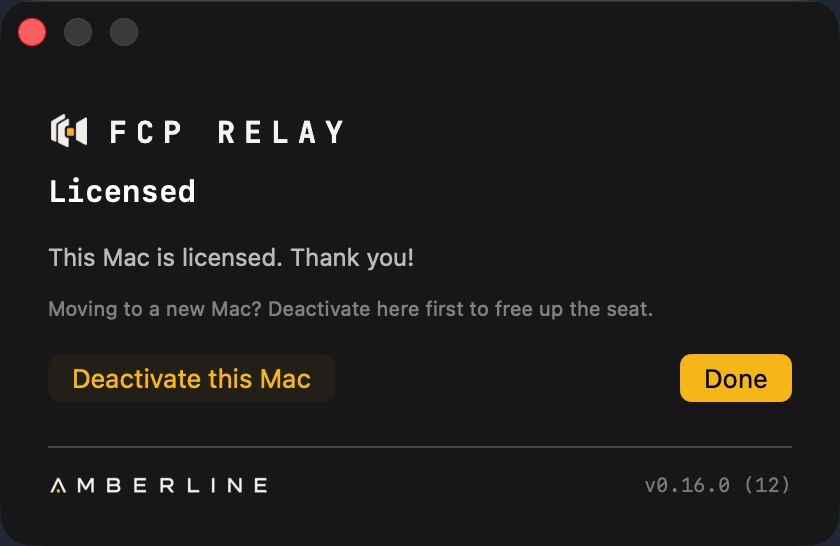
Your licence covers more than one machine, but each one takes a seat. When you're retiring a Mac or handing it on, open the licence window and click Deactivate this Mac first — that frees the seat for the new machine. If you forget, you can release it from your purchase portal.
If FCP Relay asks for an online check
Occasionally the panel will say your licence needs verifying. Connect to the internet and click through — it takes a second. Your licence hasn't gone anywhere, and FCP Relay will never take it away because it couldn't reach the service.
Known limits
Things FCP Relay currently doesn't do, so you find out here rather than mid-job.
- Empty folders don't appear. A folder with no media anywhere inside it isn't recreated in Final Cut — there'd be nothing in it.
- Two folders with the same name merge. If your shoot has Day1/Audio and Day2/Audio, they arrive as a single Audio collection. Unique names import exactly as built.
- No clock-drift correction. Angles are lined up by their start point. Cameras whose clocks drift over a very long take drift the same way in Final Cut's own sync.
- Clips with no audio can't be matched by audio. Silent clips are reported rather than guessed at.
- Final Cut only. No Premiere, no Resolve, no Avid.
Troubleshooting
Final Cut says media is missing
The folder moved after the import. FCP Relay points Final Cut at your files where they live, so relocating the shoot breaks the link. Put it back, or relink inside Final Cut.
A folder I expected isn't there
It probably held no media — see Known limits above. If it did hold media, check whether another folder in the shoot has the same name.
The multicam didn't sync
Either the clips share no audible audio, or the camera clocks say they weren't rolling together. FCP Relay reports which. If you know the clocks are wrong, use Align Anyway.
Takes weren't found
The camera's own recording has to contain the reference audio. Silent-room shoots monitored on in-ears have nothing to match against.
The Finder shortcut is missing
FCP Relay needs to be in Applications. Move it, launch it once, and log out and back in if macOS is slow to notice.
Something else
Get in touch and include what you dropped and what happened. Details of exactly what was skipped are shown in the settings sheet before every import — that's usually the fastest clue.